 Factorant
Docs / Get started
Get started
From install to your first fix, in four steps.
1. Install
Ask to join the beta through the support portal; we reply with a private install link. Open it as a Jira site admin and choose your Jira Cloud site. Atlassian's own page lists what the app may do before you agree: read your Jira configuration, keep its results in your site and report account ids to Atlassian.
2. Run your first scan
In Jira, open Settings (the gear), Apps, Admin Health for Jira, and press Start scan. The scan reads your configuration and changes nothing. It takes minutes on a small site and can take several hours on a very large one. You can close the page; the progress is kept. If Atlassian's monthly storage allowance for the app runs out, the scan stops and says so; press Resume once the allowance resets.
3. Read the home page
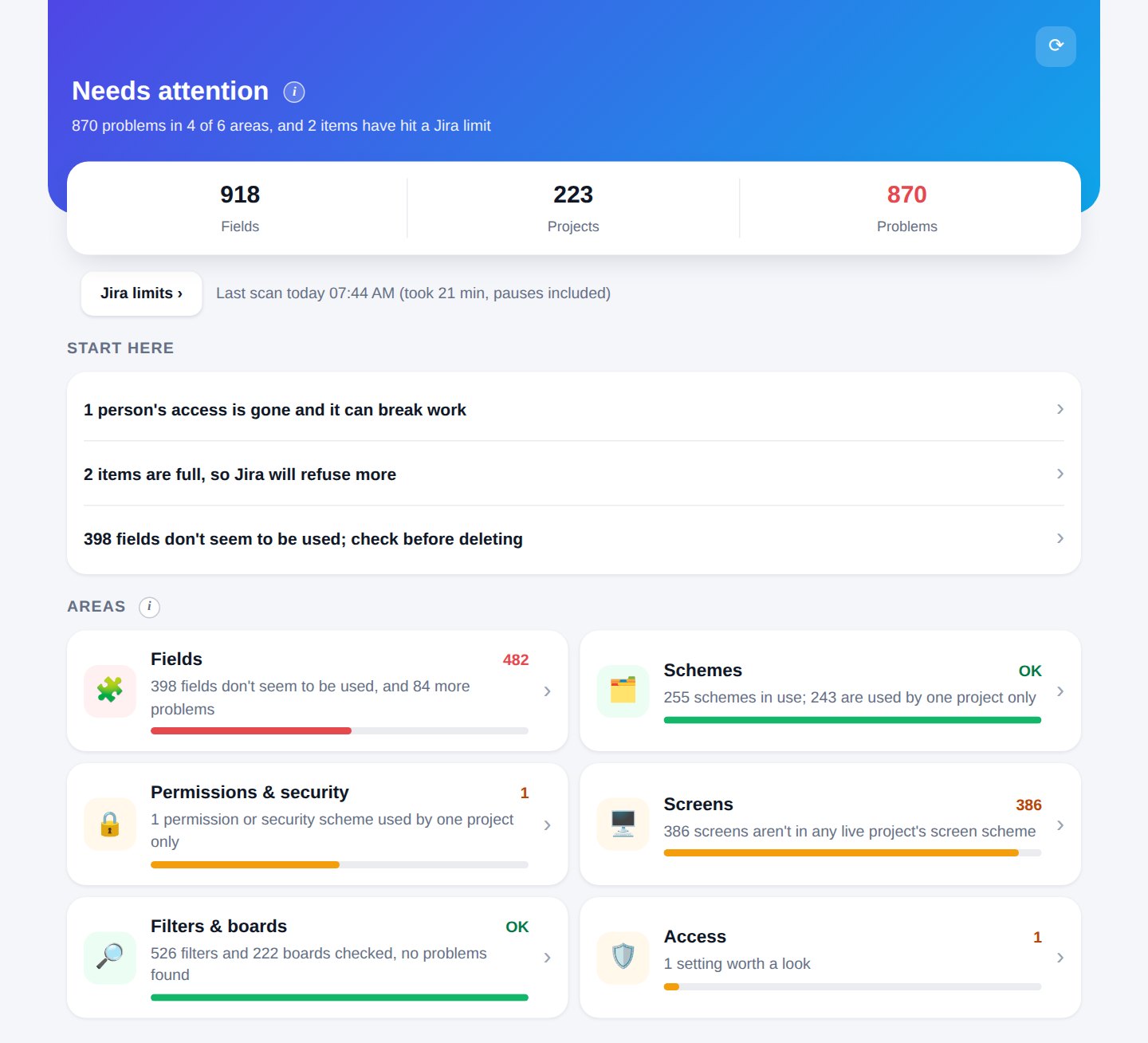
- The verdict at the top, and how many problems there are in how many areas.
- Start here: the few things to look at first.
- Areas: each one opens a list of findings. Open a finding to see why it was flagged, what to do, and a link to it in Jira.
- Since your last scan: what is newly flagged and what is no longer flagged.
Two small checks sit beside the scan and start the first time you open them: Jira limits and, if you have Jira Service Management, Service spaces.
4. Fix with care
Every finding says what to check before you act. A field that looks unused may still be named in an automation rule or another app, which the app cannot see. Most lists can be downloaded as a CSV to share with your team.